Showing posts with label liveCD. Show all posts

Thursday, August 7, 2014

Some notes about testing network block devices

I tested another random thing: network boot options short of iscsi. The first thing I tried was mounting the root filesystem from the startup environment over network block device. That was extremely simple and worked fine. There is a likely shutdown glitch, but if the root filesystem is synced the effect should be relatively minor. I am using xfs and it recovers quickly from that kind of incomplete shutdown relatively easily; well, at least it did in my limited tests. Another interesting idea for testing is to check if it is somehow possible to mount the root filesystem using ssh+nbd. That introduces some extra complications for the root filesystem, but it could definitely be adapted to encrypt traffic for another mount point, such as /home. I guess this may become practical for those who have fiber optic connections. The technique I tried is similar to sshfs, but uses only the the default tools.

Here is a rough idea of how to do this. First, login at the computer hosting the image that is to be mounted somewhere in the filesystem. Start the network block device accessible only locally. Add more local security here, if necessary.

ssh -K douglas.mayne@somecomputer
losetup -f somefile.img
nbd-server  127.0.0.1@2000 -C /root/non /dev/loop1

Then setup the connection back at the computer that would like to use this network disk:

modprobe nbd
ssh -K douglas.mayne@somecomputer -n -L 2500:localhost:2000
nbd-client localhost 2500 /dev/nbd0
mount /dev/nbd0 /home

For the encrypted traffic for the root filesystem, I am wondering if a strategy based on pivot_root might work.

On Friday, I tested this a bit more. I missed the obvious solution for encrypting the root filesystem using network block device. The obvious answer is to use device mapper on top of a network block device. I tested this and it works in the standard way.

dm-live issue and fix. Also debugging with kexec

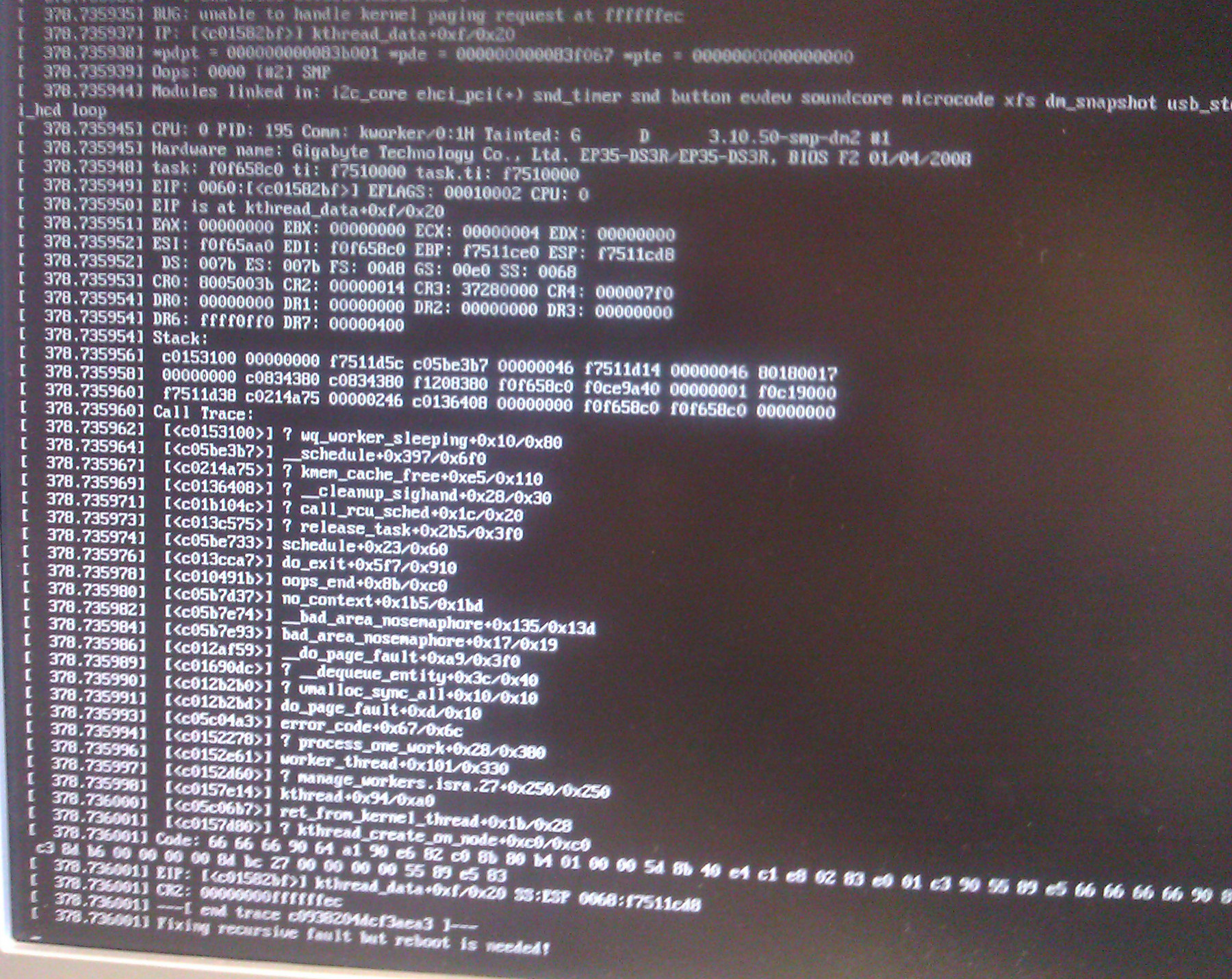
I noticed that successful bootup to a root filesystem connected via USB was broken on certain hardware. I initially assumed that the failure might be associated with a kernel bug, or perhaps to do with specific motherboard chipsets, or a flaw in my understanding of udev. I was stumped and invested some time to figure out what was wrong. This screenshot shows a typical bootup failure. Googling the failure shows others are experiencing the same troubles, perhaps for similar reasons. I didn't see any obvious solutions. For the last while I have mostly been working around the problem by using a root filesystem connected directly over SATA.

I stumbled on the solution by chance:

Include the ehci-pci module among those that are loaded at boot. That ensures the best performance for the external drive, be it a flash disc or a magnetic disc.

Because booting to a root filesystem on USB is the heart of a live USB install, it's good to know that it was a case of PEBKAC and not something more endemic.

With that fix out of the way, there are some other changes to my dm-live startup environment including following along with the stable kernel releases in the 3.10.x series. Currently, I am testing with kernel 3.10.51.

By the way, in the debug phase of this problem, I was pointed to kdump. I played around with the kexec utility to see some of the basics of kernel debugging and how it is designed to work. I found right away that the basic kernel configuration that I have been using, which is extremely similar to the basic default Slackware kernel, is configured to not generate symbols, enable boot-time reservation of memory using the parameter crashkernel=, or be arbitrarily relocatable. To use kdump there are a few changes, including adding the full compiler symbols the compiled objects. In general, I agree with Slackware's decision not to include the symbols because they increase the size of the resulting compile by a factor of 5 or 6 times. In the end, throughout my attempt to debug the above problem, I wasn't able to generate the right kind of crash, i.e. one that actually writes its crash data. I was pretty sure I was doing it right because kexec -l and kexec -e were working as expected. The panic code when loaded with kexec -p just wasn't tripped for whatever reason. It was too hard of crash, I guess.

Friday, September 20, 2013

dm-live boot environment updated for pending Slackware 14.1

Slackware 14.1 beta Kernel: 3.10.12
BusyBox v1.20.2 (2013-06-22 00:26:51 CDT) multi-call binary.
Copyright (C) 1998-2011 Erik Andersen, Rob Landley, Denys Vlasenko and others. Licensed under GPLv2.
Packages:
  • a/aaa_base-14.0-i486-5.txz
  • a/aaa_elflibs-14.1-i486-2.txz
  • a/aaa_terminfo-5.8-i486-1.txz
  • a/bash-4.2.045-i486-1.txz
  • a/bzip2-1.0.6-i486-1.txz
  • a/coreutils-8.21-i486-1.txz
  • a/cpio-2.11-i486-2.txz
  • a/cryptsetup-1.4.3-i486-1.txz
  • a/devs-2.3.1-noarch-25.txz
  • a/dialog-1.2_20130523-i486-1.txz
  • a/e2fsprogs-1.42.8-i486-2.txz
  • a/elvis-2.2_0-i486-2.txz
  • a/etc-14.1-i486-1.txz
  • a/findutils-4.4.2-i486-1.txz
  • a/glibc-solibs-2.17-i486-7.txz
  • a/grep-2.14-i486-1.txz
  • a/gzip-1.6-i486-1.txz
  • a/kernel-firmware-20130912git-noarch-1.txz
  • a/kernel-generic-smp-3.10.12_smp-i686-1.txz
  • a/kernel-modules-smp-3.10.12_smp-i686-1.txz
  • a/kmod-15-i486-1.txz
  • a/lvm2-2.02.100-i486-1.txz
  • a/mdadm-3.2.6-i486-1.txz
  • a/mkinitrd-1.4.8-i486-1.txz
  • a/pkgtools-14.0-noarch-2.tgz
  • a/procps-3.2.8-i486-4.txz
  • a/sed-4.2.1-i486-1.txz
  • a/tar-1.26-i486-1.tgz
  • a/udev-182-i486-6.txz
  • a/util-linux-2.21.2-i486-6.txz
  • a/which-2.20-i486-1.txz
  • a/xfsprogs-3.1.11-i486-1.txz
  • a/xz-5.0.5-i486-1.tgz
  • l/readline-5.2-i486-4.txz
  • n/gnupg-1.4.14-i486-1.txz
  • n/libgcrypt-1.5.3-i486-1.txz
  • n/libgpg-error-1.11-i486-1.txz
I also tweaked the installed packages to save some space:
  • kernel itself manually removed from this image (boot element specified separately.)
  • compressed the kernel modules with gzip (and depmod)
  • compressed the kernel firmware into an txz archive
  • compressed the /usr/share/locale directories into an txz archive.
If the locale or firmware directories are needed during the boot process for whatever reason, they can be expanded from within the working environment. The basic initrd uses about 134M when expanded with these optimizations. Expanding the locale and kernel firmware requires 189M.

Monday, January 16, 2012

Minor Update to My Live USB

I have been using a live USB based system, off and on, for the last few months. I am impressed with how well it actually works! There have been a few glitches on my hardware, and have switched to the bleeding edge linux kernel, v3.2.1. I've also upgraded to Firefox 9. It moves a few toolbars around by default, but they can be swapped back to look more like v.3.6.x. The root filesystem is prepopulated with an almost full base install of Slackware 13.37, with a few updates beyond, including the kernel. A few useful packages are also installed including the evince document viewer, and some browser plugins. The space used from the outset is about 3.9G.

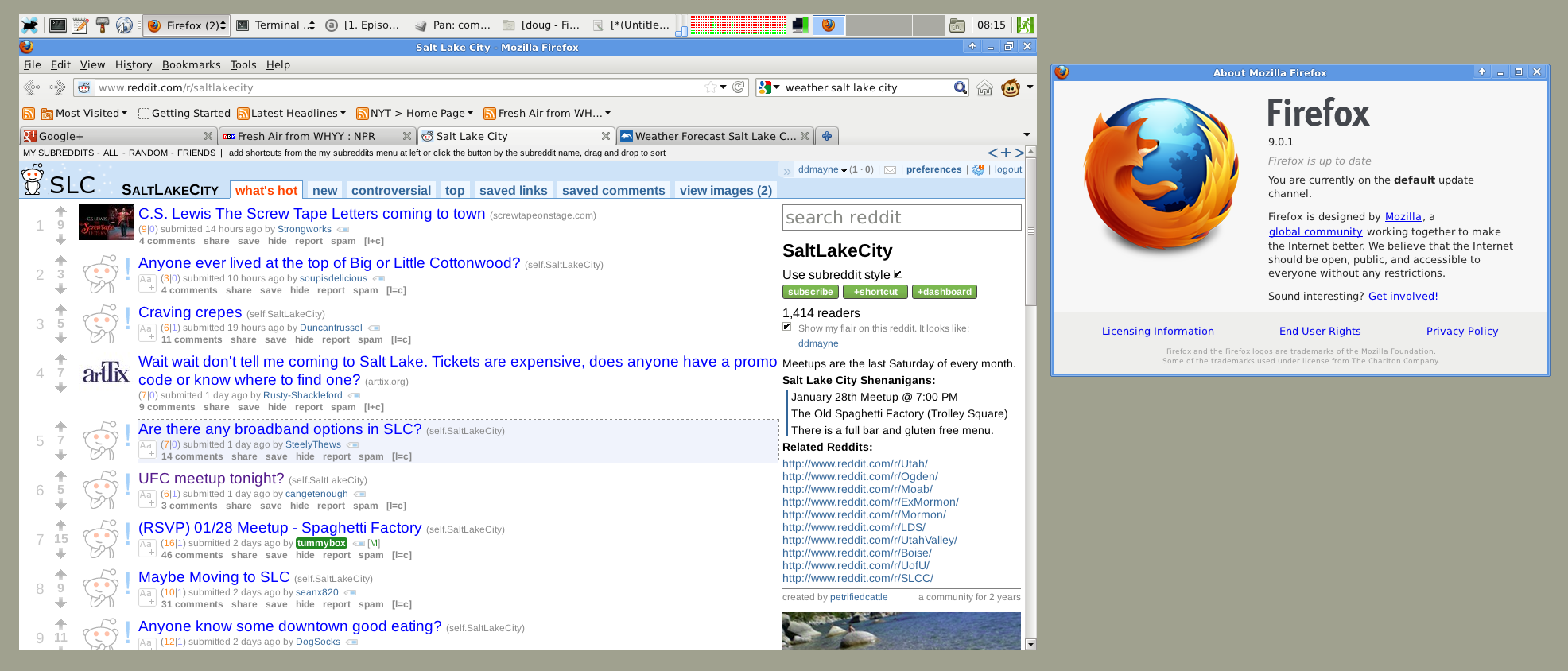
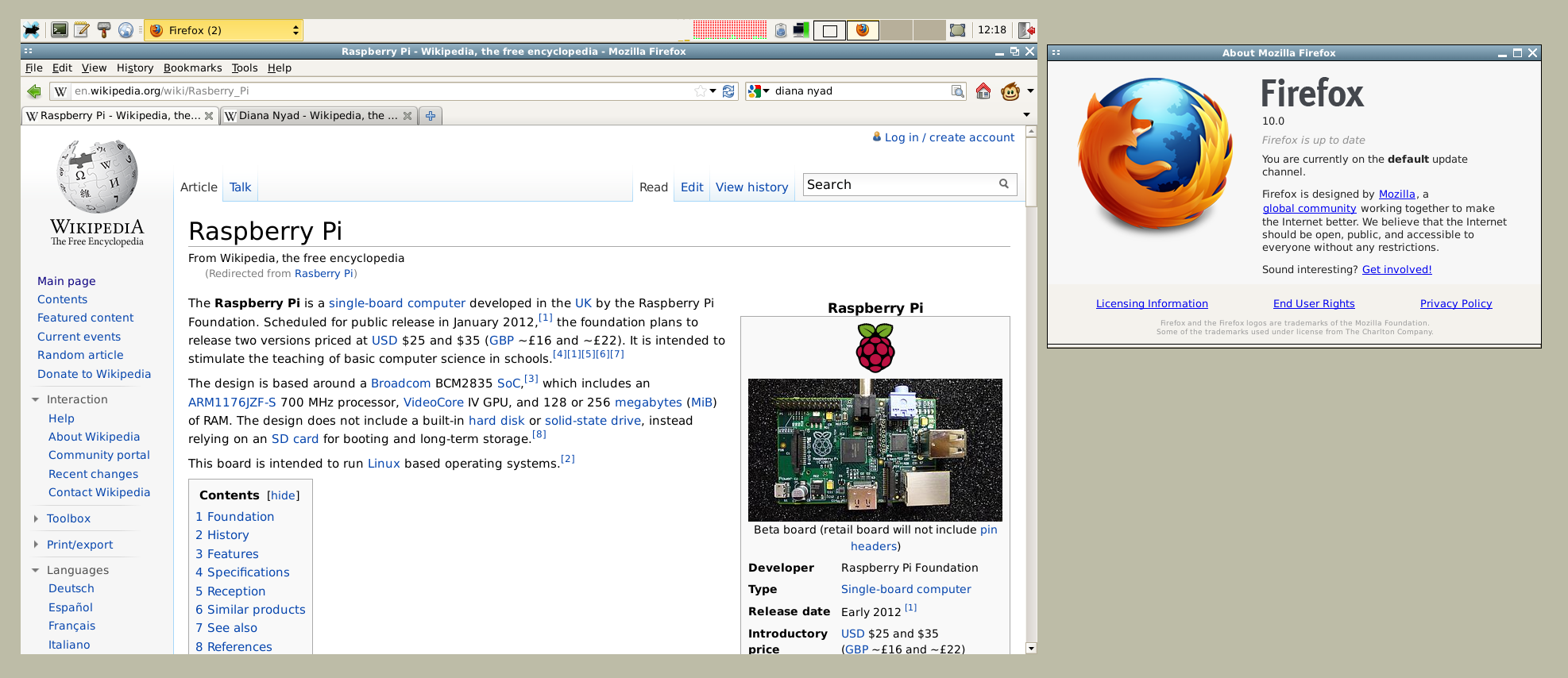
Here is a screenshot of the live USB running, with the firefox about box appended:
1.

The system is running in true live mode- all changes to the system are stored in RAM only. A persistent mode is also available. The system's root filesystem is using the same layout as discussed previously on an 8G flash drive.

edit: Here are the steps I use to finalize the boot of a pristine Slackware install in live mode.


  • login as root

  • run pkgtool, select the slackware scripts to run again. Select the relevant choices.

  • add a non-root user using adduser

  • add the above non-root user to the sudoers list, using visudo

  • setup wifi connection parameters, if applicable, using wicd-curses, or similar

  • login as non-root user and begin customizing user environment as desired


    • set screensaver; I dislike the default selection, random screensaver

    • customize xfce's main toolbar

    • start firefox to initialize user directory, .mozilla

    • install adobe flash

    • install other plugins: greasemonkey, reddit enhancement suite


Update 2012-02-02: There were a lot of slackware patches in the recent official slackware changelog. Here is a screenshot showing Firefox 10.

2.

Monday, October 24, 2011

Good Default Printer for Slackware

I just noticed this slackbuild that creates a virtual pdf printer. This printer could be useful when used on live-usb system as the default printer. One improvement would be the ability to query the user for the filename to use. That would be very similar to "print to file" on other OSs.

Tuesday, April 5, 2011

dm-live rescue/boot environment

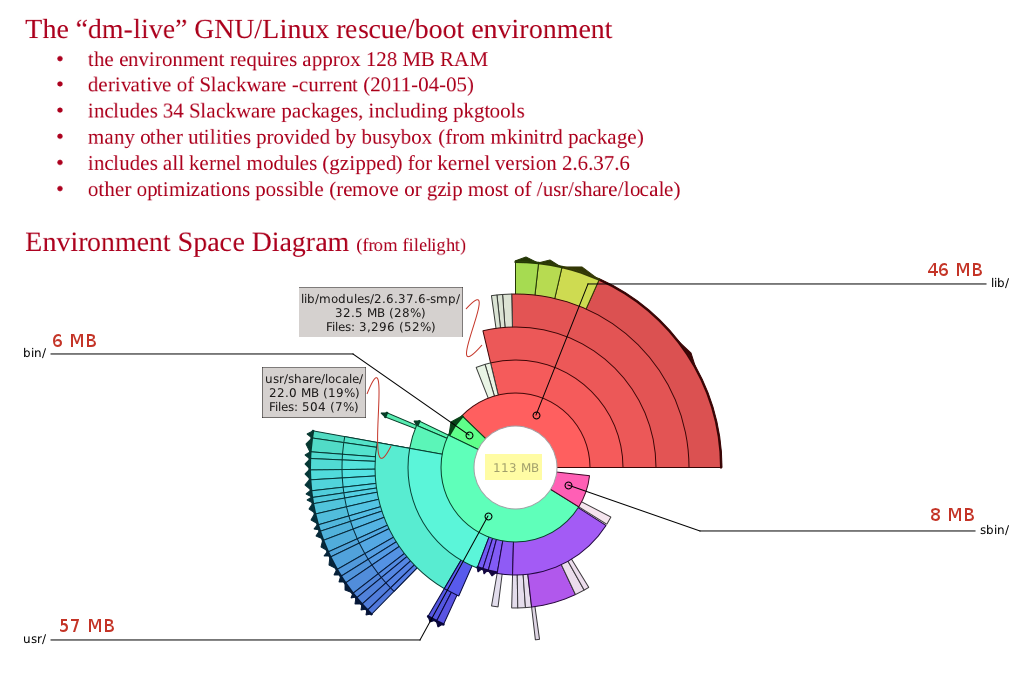
A few packages from a Slackware base repository can be used to setup a nice rescue or generic boot environment. Simply, build the environment and save in the proper initial ramdisk format using the standard cpio sequence. Next, build a boot disk by combining the bootloader, kernel, the initrd image that is described here. By the way, I use the grub bootloader. I call the resulting environment "dm-live" (device mapper -live) because it relies heavily on device mapper for various modes of operation (booting live-usb's or live-cd's, booting encrypted filesystems, etc.) Note: I have also replaced the standard "init" program, with my own variant.

I will probably move this to its own web page in the future as it "fleshes out." I want to use it to record the packages I used in the environment for each matching Slackware release. For now, here's a graphic showing the relative space used by the environment
.


Update: 2011-04-08
I have updated the packages in this environment to match Slackware -current to this timestamp in the official Slackware change log: Fri Apr 8 06:58:48 UTC 2011
Here is the updated package list.

Update: 2011-04-25
I have updated the packages in this environment to match Slackware -current to this timestamp in the official Slackware change log: Sun Apr 24 03:20:33 UTC 2011
Here is the updated package list. I am also testing with both Slackware compiled kernels: 2.6.37.6 and 2.6.38.4 (with the latter working a bit better. YMMV.)


By the way, this project is an unofficial derivative work based on Slackware Linux.

Trademarks and Copyrights


Slackware is a registered trademark of Patrick Volkerding and Slackware Linux, Inc.

Linux is registered trademark of Linus Torvalds.

Tuesday, December 28, 2010

DIY: Slackware on USB Flash (8G)

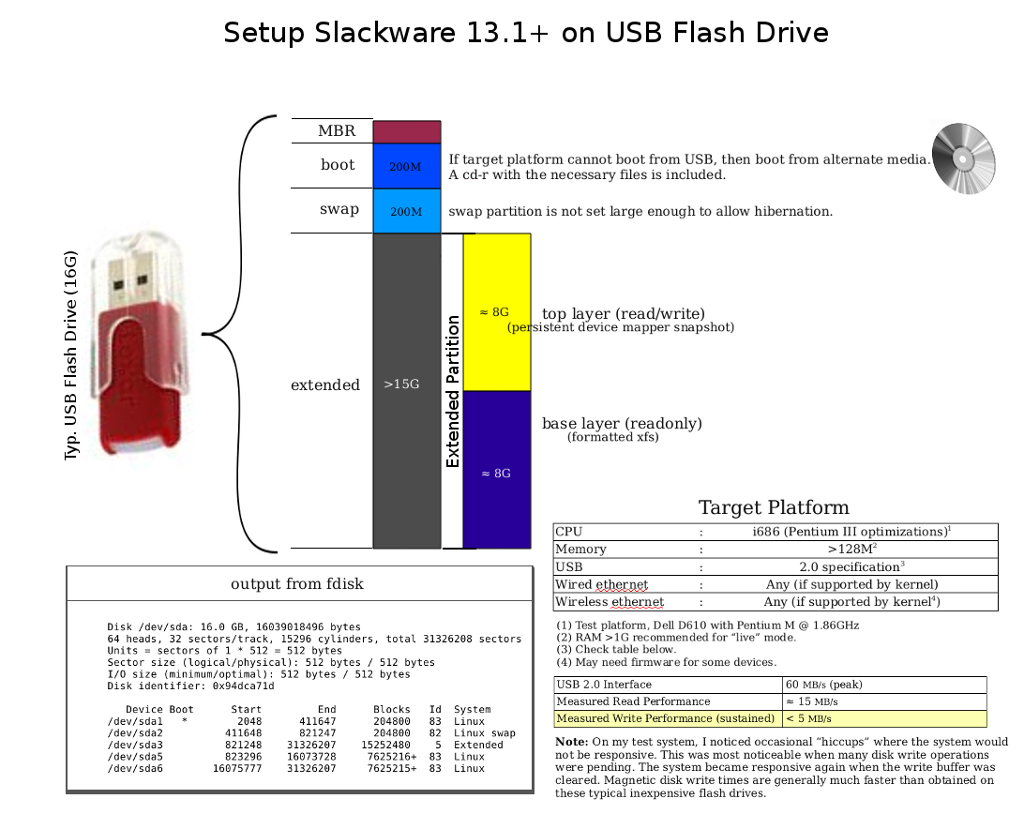
As mentioned in my previous post, it is possible to use an 8G flash drive, instead of the larger (and pricier) 16G version.

Misc. Notes
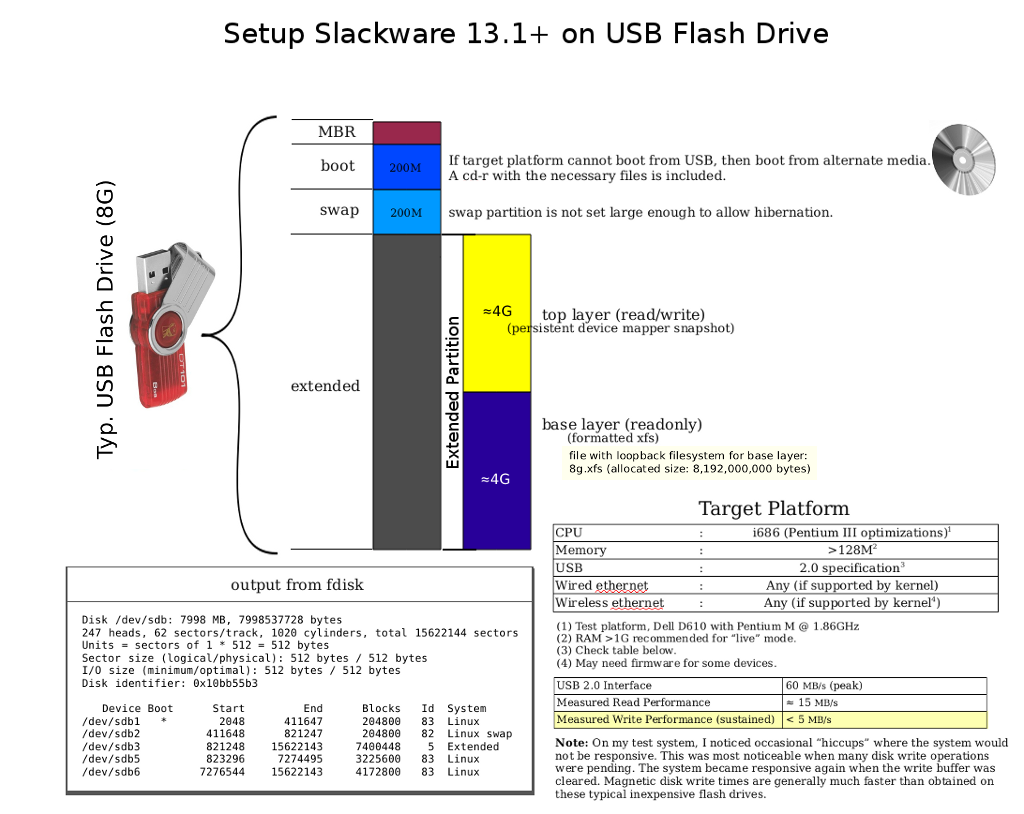
This layout still gives the option to boot into one of two modes: either the live mode where changes are written to RAM only, or the persistent mode where changes are written to the flash drive (to partition 5). The user is advised to watch the amount of free space left in the snapshot. For the live mode, the amount of free space depends on the amount of RAM installed on the hardware. For the persistent mode, I have set the size of partition 5 to allow for roughly 4G of changes. I think that should work because 4G of changes plus 4G of static data in the base layer equals 8G total in the root filesystem. However, use this project at your own risk! For example, if you need files from the persistent snapshot, then it is possible to back them up externally. You can save them using a simple backup method, say, login as root and use tar to backup the files in question. If you want to hear about other possible backup methods, then just ask.

Here is my previous graphic, updated to show the new layout, setup on an 8G flash drive.

1.

An 8G file on a 4G partition seems to be impossible at first glance. The trick is to store the base layer on a sparse file. XFS supports sparse files, that means blocks are not allocated until they are actually used. The file is first allocated with the command sequence:


# dd if=/dev/zero of=8g.xfs bs=1024 count=0 seek=8000000


If you want to directly install the base layer into this container, then it is probably a good idea to limit the initial extent to 4G. This will prevent running out of space prematurely, and we can fix it up later.


# losetup /dev/loop0 8g.xfs
# echo 0 8000000 linear /dev/loop0 0 | dmsetup create 4g
# mkfs.xfs /dev/mapper/4g
# mount /dev/mapper/4g /mnt/floppy


Install the packages you want using installpkg (with the specified root.) Then after the base layer contains all the expanded packages, you can resize it.


# umount /mnt/floppy
# dmsetup remove 4g
# mount /dev/loop0 /mnt/floppy
# xfs_growfs /mnt/floppy
# umount /mnt/floppy
# losetup -d /dev/loop0


From now on, make minimal changes to the file holding the image. If you make too many changes, you could really run out of space. Also, if you attempt to backup the file with tar, the OS provides data for the sparse blocks- in effect expanding it on the fly. This may present another problem and may not be what you want. I used a slightly different tactic to avoid that problem. In any case, don't change the file if you have started using the persistent snapshot on partition 5! This is because the base layer must remain constant and changes go to the "top" layer. Restated, if you change the base layer, you must also reinitialize the persistent snapshot! Be careful!

Update: 2010-12-31
Here is some introductory documentation for the set of test devices that I have been working on.

Update: 2011-04-07
I have added this post which discusses my startup environment in more detail.

Monday, December 20, 2010

DIY: Slackware on USB Flash on old PC

I was curious how well the project (booting Slackware-current on a USB flash drive) would work when booted on an old PC- or even if it would work at all. I pulled an old PC out of the closet for the test. I found an old Dell Latitude CPt laptop (service tag: 4AQI6). I found some spare memory for it, topping out both slots for a total of 512MB. That should help a lot, but I know other limitations might still make it unusable or cause the test to fail. The limitations include low CPU power and its v1.1 USB interface. Significantly, the USB v2.0 interface increased top speeds by a factor of 43.6x over the predecessor (480 vs. 11). That could be a serious limitation! I decided to go forward with the test anyway. To my surprise, it booted just fine- albeit a bit slow compared to modern hardware; probably mostly due to the USB speed and its CPU- a Celeron 400Mhz (Mendocino - P6 class).


More Details
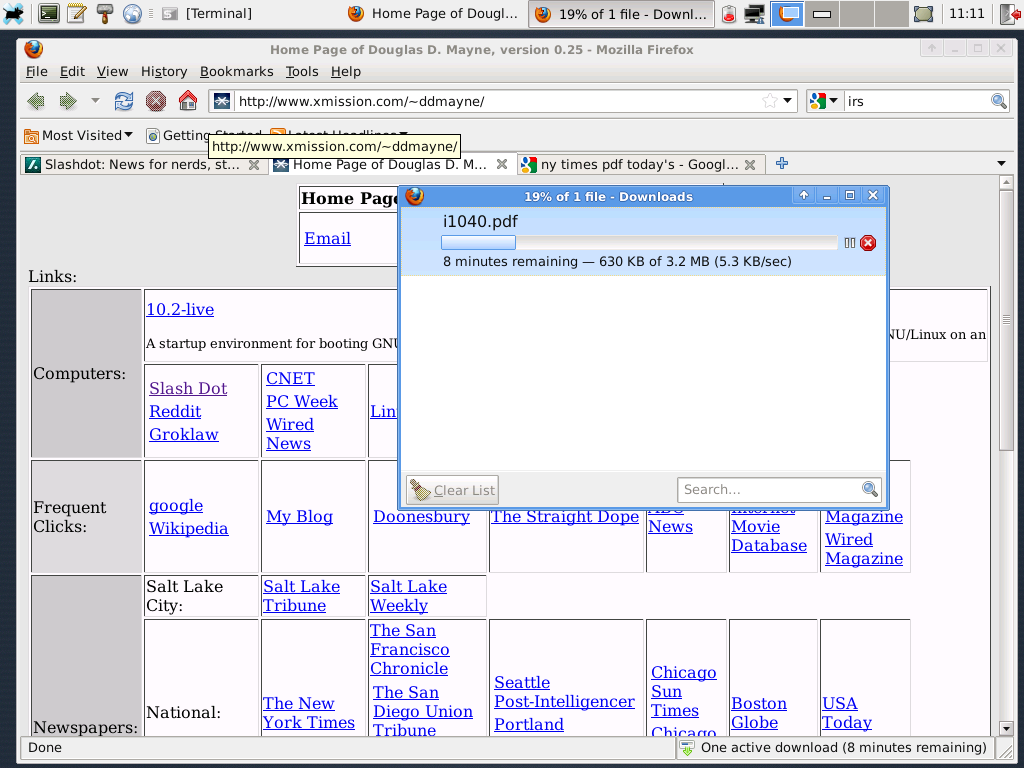
I don't think this hardware will boot from USB. I booted from a CD-ROM. Also, I couldn't find any PCMCIA wireless cards, but I did find a Viking 56k modem card. I connected to my ISP and started running Firefox. Here are a couple of screenshots. Notice that the download speed is 5 kB/s, i.e. 56k max speed. Here are the startup logs and some stats while running. Note times referenced in the log are wrong because I didn't set the clock before booting and it had reverted to its default time due to a dead motherboard battery.

.

Final Word
People are constantly upgrading hardware and that means there are a lot of spare computers lying around. If you have a spare P4-class computer, or a spare P3/Celeron computer, then consider using it with a secure OS: GNU/Linux. This is especially true because Windows 95/98/Me/NT/W2k are all "expired." Meanwhile, the hardware lives on.

Update: 2010-12-21
For "desktop" use, I think the above hardware may be just a bit too low, especially in "live" mode relying on the USB bus. I left the PC running for the day, and it experienced some serious hiccups and performance degradation over time. I think this hardware would work better with an actual magnetic hard disk instead of the USB flash drive; and perhaps finding a system with a 650MHz P3 processor, instead of a 400MHz Celeron. I noticed some minor hiccups even on more modern hardware, but on hardware of this vintage the hiccups were much more severe. Maybe, I'll run some more tests later on other low-level hardware.

Possible next test bed:


MotherboardDFI CM33-TL/G
CPUSingle slot: Celeron 1.3GHz
Memory512M to 1G PC133
Videoonboard ATI 8M
USBBelkin USB 2.0 on PCI bus


One common problem of P3 vintage hardware is that the builtin USB is v1.1, not v2.0. That means it is usually necessary to find a USB 2.0 add-in card. The P4 generation (and later) motherboards usually do have builtin USB v2.0 slots. The other problem causing "premature" death of hardware is failing motherboard capacitors. That problem seems to be very prevalent on certain brands.

Wednesday, December 1, 2010

DIY: Slackware on USB Flash

This post supplements my earlier post on this topic. That tested fairly recent desktop class hardware when using a CF memory module on a SATA bridge adapter as the primary storage/boot media. In this test, I perform a very similar test, but using a common laptop (Dell D610) to boot Slackware on flash memory on a USB 2.0 interface (aka, "jump drive," "thumb drive," etc.) This test confirmed the concept of having a "system in your pocket" is now a reality. Note: This is a full install; the current generation of flash storage gives more than enough space to comfortably hold the full set of standard software, with no cutdowns or compromises required. R/W cycle lifetime of the hardware has also improved, but YMMV. I started this test with a 16G capacity flash drive, but more testing showed that an 8G capacity drive could be substituted in a pinch.

Update: 2010-12-28
I added this post to document a few of the tricks that make this possible using the smaller flash drive.

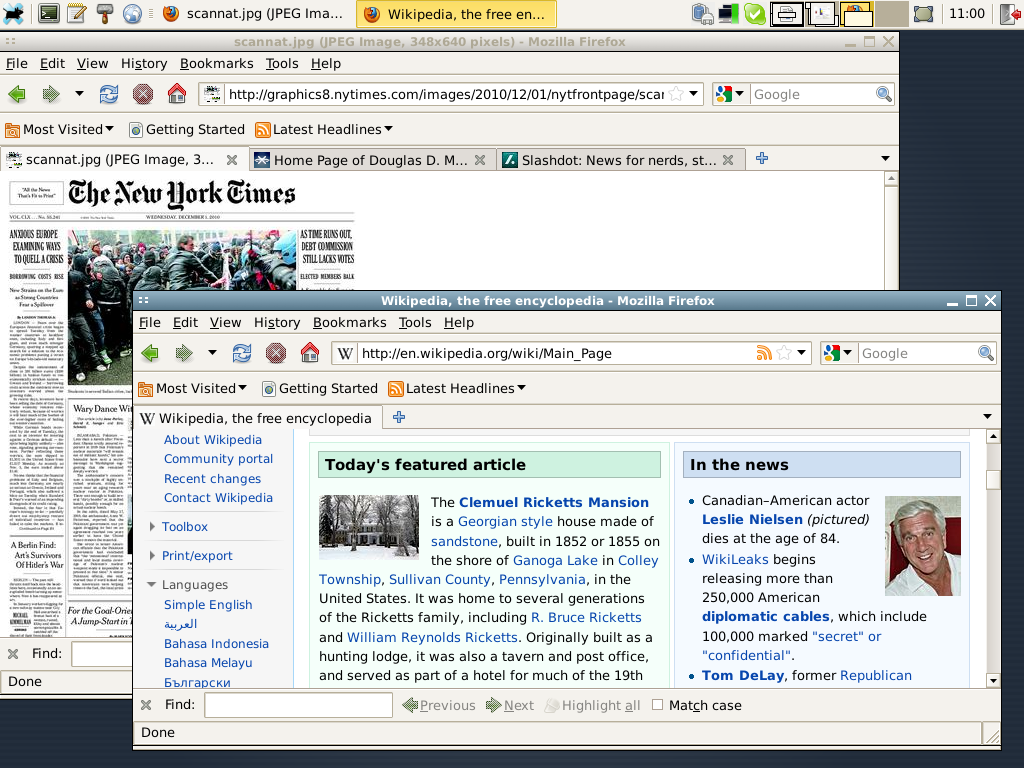
More later. For now, here are a couple of screenshots.

1.

This mode of operation places the "top" layer of the persistent snapshot on its own partition on the flash drive. An alternate mode uses RAM as the top layer. When the "top" layer is allocated from RAM, the snapshot is not really persistent, but it has the advantage of not incurring R/W delays associated with flash media, and it will not use finite R/W cycles associated with the media itself. Because the snapshot is generalized, there are other modes of operation which can be setup with minimal extra effort. Here are some options off the top of my head:

  • top layer encrypted

  • top layer stored on other device on other filesystem (for example, NTFS)

  • top layer on RAID 1

  • etc.


  • Of course, using a device mapper snapshot is completely optional. The current size of flash memory devices allows a "normal" install without too many tricks required. In that mode, an 8G flash device would work fine, allocating about 4G for system software and 4G as free user space. The only tricks are building the initrd with the required modules to get USB functional and setting up the bootloader. I am using my own "startup environment" which is a bit different than the standard Slackware initrd.

    2.

    Installed software includes:

  • Slackware-current (2010-11-29) -- post v13.1

  • Linux kernel 2.6.35.9

  • XFCE window manager

  • Firefox

  • Open Office 3.2.1

  • Skype

  • Gimp

  • grub bootloader

  • and, of course, it is possible to install more software, per standard tools


  • The latest X window system should also "just work" and not require tweaking /etc/X11/xorg.conf to enable startup. YMMV.

    Update: 2010-12-04
    Here is a package of files with some misc. information including statistics when running in live mode on a Dell D620 laptop. There is also a list of installed packages.

    Update: 2010-12-14
    Some more testing showed that both of the possible startup modes (live or persistent) will work on a single flash drive as small as 8G. One trick is to use a "sparse" file to hold the base install image. Specifically, an 8G XFS filesystem image can be stored on a 4G partition. This works because the 8G image is only about half full. This frees up the other half of the device for changes. This may not be quite as flexible as the 16G device because the amount of changes that can be made to the base device does not perfectly match the underlying base filesystem. However, 8G may provide enough space to make it a viable option; that is, at least until 16G devices are commonplace. Be aware that when using this mode, the user should keep an eye on the remaining space available in the snapshot because it could be exhausted first, i.e. the snapshot is exhausted even though there is extra space on the filesystem. This problem is avoided when using the 16G size.

    Update: 2010-12-15
    You should keep an eye on the space used in the snapshot image, especially when the snapshot is smaller than the target device. Here is a nice little hack:

    #!/bin/bash
    [ ! -e /dev/mapper/top ] && exit 1
    v=$(echo "scale=4;$(dmsetup status top| cut -f4 -d\ )*100"| bc -l)
    printf "Snapshot Used: %04.2f%%\n" $v


    Update: 2010-12-16 Startup Notes
    Goal: Boot to runlevel 3 in "live" mode
    Steps:
      (1) Select appropriate choice from boot menu

    This will load the kernel and initrd. I have noticed this takes a variable amount of time depending on the hardware, and possibly the mode that the BIOS uses to interface with USB. I have seen this step take between 5 and 20 seconds.

      (2) When the above step completes the kernel takes over and the login prompt should appear in less than a minute.

    Start time is somewhat dependent on specific hardware. On my hardware I observed a time of 48 seconds. The specific boot details are as follows. First, there will be a slight pause while the kernel unpacks the initrd. There is a prompt asking the user to select which display mode to use. Second, the familiar "penguin" logo will be displayed as other startup facts scroll by as the kernel performs basic initializations. Third, control will transfer to my startup environment. It probably won't be obvious when the switch takes place, but it will include a step to load the kernel USB modules and include a 7 second delay while the USB bus stabilizes. Next, a reference to the license terms is displayed and asks the user to press "enter" to indicate acceptance (or ctl-alt-del to terminate). Upon acceptance, final setup of the snapshot in the desired mode is performed. When complete, control transfers to Slackware's default init program on the target root filesystem. The initialization requires certain keys/certificates to be generated and a "graphic" fingerprint is displayed for each. Finally, the login prompt will appear.

      (3) In live mode, login as root and perform final initializations.

    The user should set the root password and run "pkgtool" and choose, "Setup: Choose the Slackware installation scripts to run again."

    When complete, add your non-root user. There are a few steps to perform here to make the user a "power" user. Add your name(s) to the appropriate groups, and possibly sudoers.

    You can install other packages. Skype is included as a Slackware package in the root directory. Install it with the command:

    $ installpkg skype-2.1.0.81-i486-1_SBo.tgz

    The above steps can be a bit tedious, and can be avoided by using the "persistent" mode.

      (4) Login as your non-root user and start a graphic session.


    $ startx

    From here, you are running GNU/Linux. You can install more software. For example, download and install the latest Adobe flash plugin for Linux.

    Update: 2010-12-20
    I performed a test where I booted on hardware at the lowest end of the possibly usable spectrum, i.e. when using at least a computer with a P6 class CPU. I documented my test separately here because this post is getting a bit cluttered.

    Tuesday, August 24, 2010

    DIY Project


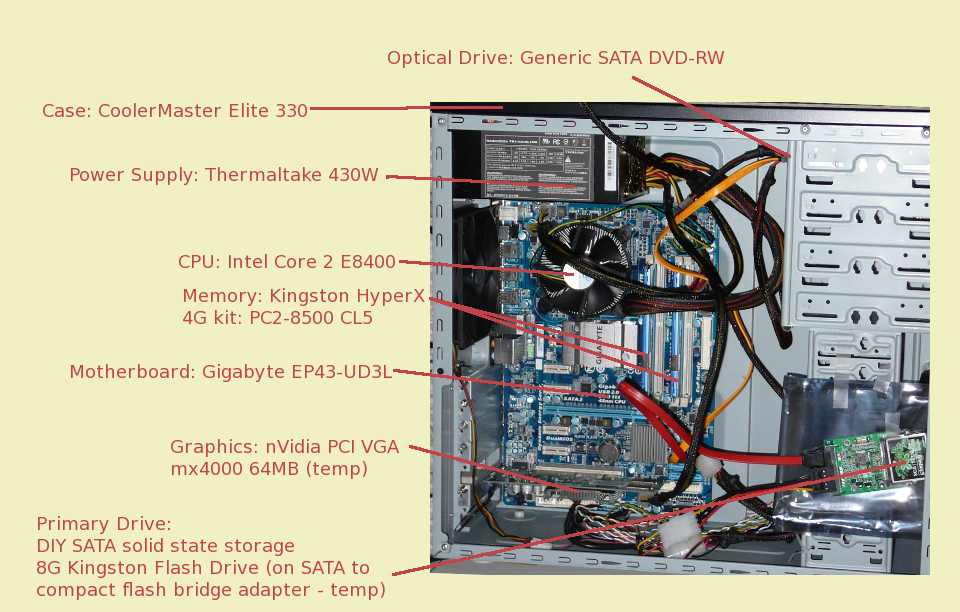
    Here

    is my latest PC assembly project. I went the "do it yourself" route and I used parts similar to those that I mentioned here. I can't say that it's the cheapest PC out there, though. I see that Staples has an Acer desktop on their ad for $300. I hope that the adage "you get what you pay for" is true because the Staple's system looks to be a good bargain in comparison.

    One thing which I was able to test with this system is running from a flash based live Linux distribution. The flash drive holds an 8G image of Slackware 13.1. The image is used as the basis for a device mapper snapshot. The "top" layer is allocated from RAM (tmpfs). By default the Linux kernel will allocate half of RAM for use by tmpfs, about 2G in this case. I used all of that for the snapshot (with loop0 pointing to the allocated file). From my initrd environment, I used this command sequence:


    # dd if=/dev/zero of=/tmpfs/z
    # losetup -f /tmpfs/z
    # echo 0 $(blockdev --getsize /dev/sda1) snapshot /dev/sda1 /dev/loop0 p 32 | dmsetup create top


    Note that by using RAM as the top layer, I avoid writing anything at all to flash. This is by design to prevent failures due to too many R/W cycles. In effect the flash layer is readonly; changes go to the top layer. A major benefit of using flash memory for the readonly layer is that it is orders of magnitude faster than optical disc (because optical disc seek time is so very slow.) The technique is described here.

    Update: 2010-08-26
    Here is some information about the E8400 CPU as seen by the Linux kernel:

    bash-4.1$ cat /proc/cpuinfo
    processor : 0
    vendor_id : GenuineIntel
    cpu family : 6
    model : 23
    model name : Intel(R) Core(TM)2 Duo CPU E8400 @ 3.00GHz
    stepping : 10
    cpu MHz : 3000.068
    cache size : 6144 KB
    physical id : 0
    siblings : 2
    core id : 0
    cpu cores : 2
    apicid : 0
    initial apicid : 0
    fdiv_bug : no
    hlt_bug : no
    f00f_bug : no
    coma_bug : no
    fpu : yes
    fpu_exception : yes
    cpuid level : 13
    wp : yes
    flags : fpu vme de pse tsc msr pae mce cx8 apic sep mtrr pge mca cmov pat pse36 clflush dts acpi mmx fxsr sse sse2 ss ht tm pbe nx lm constant_tsc arch_perfmon pebs bts aperfmperf pni dtes64 monitor ds_cpl vmx smx est tm2 ssse3 cx16 xtpr pdcm sse4_1 xsave lahf_lm tpr_shadow vnmi flexpriority
    bogomips : 6000.13
    clflush size : 64
    cache_alignment : 64
    address sizes : 36 bits physical, 48 bits virtual
    power management:

    processor : 1
    vendor_id : GenuineIntel
    cpu family : 6
    model : 23
    model name : Intel(R) Core(TM)2 Duo CPU E8400 @ 3.00GHz
    stepping : 10
    cpu MHz : 3000.068
    cache size : 6144 KB
    physical id : 0
    siblings : 2
    core id : 1
    cpu cores : 2
    apicid : 1
    initial apicid : 1
    fdiv_bug : no
    hlt_bug : no
    f00f_bug : no
    coma_bug : no
    fpu : yes
    fpu_exception : yes
    cpuid level : 13
    wp : yes
    flags : fpu vme de pse tsc msr pae mce cx8 apic sep mtrr pge mca cmov pat pse36 clflush dts acpi mmx fxsr sse sse2 ss ht tm pbe nx lm constant_tsc arch_perfmon pebs bts aperfmperf pni dtes64 monitor ds_cpl vmx smx est tm2 ssse3 cx16 xtpr pdcm sse4_1 xsave lahf_lm tpr_shadow vnmi flexpriority
    bogomips : 5999.07
    clflush size : 64
    cache_alignment : 64
    address sizes : 36 bits physical, 48 bits virtual
    power management:

    And, some relative scores here.

    My next project will most likely be a 64-bit machine for use with VMare ESX or QEMU+KVM. I am looking at a pair of Xeon 5520 CPUs. Or possibly, Xeon 5504 to save some bucks.

    Update: 2010-12-01
    Check this post for a similar project using flash as a primary storage media.