Sunday, April 13, 2014

The following table details some of the hardware I have used in the PC era. It begins with the venerable Compaq luggable that launched the "clone" wars. I've seen a lot of hardware along the way. In the early era these brands come to mind: Everex, ALR, Northstar, Gateway 2000. Each row in the table shows what were compelling upgrade points along the path. At each step, the blazingly fast new designs left previous generations in the dust. Somehow, what had been a pleasure to use now seemed to be a chore, or too slow to bootup. What had been fast, was now painfully slow. I hope I can add benchmarks to put a mathematical value on each row. Perhaps, by comparing the next row to the previous, or some other baseline.

The genesis for making this table was XP's expiration. That didn't turn out to be as big of a deal as I thought it would. The heartbeep SSL bug made bigger news. XPs overall worldwide usage is estimated as low as 10% currently. The same estimates peg all Linux at 5%. Of course, I use Slackware Linux as my daily OS. XPs expiration forced many to upgrade to marginally better hardware, at least, for those using the Windows platform. I rolled out just over a dozen machines that use i5 CPUs. They have 16G RAM typically. That is a factor of 8 times more over the standard amount that I had incorporated at the previous level (i.e. at Core 2 E6600)

As I was finishing the rollout of the latest generation of PCs with the evolutionary step in operating systems, I had two main thoughts. First, would this be the last hurrah for desktop PCs? Will everyone demand tablets? Will Android and iOS eclipse the Microsoft juggernaut that lasted for a generation? My guess is that the days of PCs as we have known them are limited. Second, I thought how the Windows interface has gotten progressively worse. These are subjective opinions, I know. But I find that Windows 8 is not an evolutionary step that is better than Windows 7. Likewise, Windows 7's interface was worse than XP. I may be an old fogey, but give me consistency for the best productivity. These upgrades have pulled the rug out from under users for no go reason. Again, just my opinion.

8088 clocked @ 4.77 MHztyp. less than 640k8-bit compromise of 16-bit 8086; 8087 math coprocessor optional. Used in the Compaq "Luggable".
80286typ. 1MB, OS limited use beyond 640kIBM "AT." These machines typically had sockets for 1 MB RAM.
80386 DX @up to 20 MHz1MB designs still prevalentincluded virtual 8086 mode; first to use 32-bit mode; still required a coprocessor for fast math functions; a very important chip. Motherboards could support 1+4MB RAM on proprietary buses.
80486 DX4 to 8 MB RAMupgrade to 80386 included on board math coprocessor. Rolled out in Gateway 2000 desktops.
PentiumFirst machine outfitted with 32 MB RAMOS: Windows NT 3.51
dual Pentium Pro @200 MHz32 to 512 MBdual CPUs in the "686" era kicked the Pentium's ass. OS: Windows NT 4.0
Celeron w/ 128k L1 cache @800 MHz128 - 512 MBbudget chip in the "686" line disabled support for multi-CPU in hardware. Motherboard chipset support for SDRAM. These boards were plagued by a bad capacitor problem that caused premature failure.
Celeron single CPU upgrade, w/ 256k cache @1300 Mhz512 - 1.5 GBMotherboard offered supported for SDRAM clocks and ecc memory
Pentium 4Ran hot compared to predecessors
dual Pentium III each w/ 512k cache @up to 1400 MHz1 - 2 GBdual chip configuration was good at keeping the machine responsive to the user. Path to memory was showing its age when compared to P4 designs.
Pentium M @up to 1870 MHz1 - 2 GBFirst single core chip to do better than P4. Dell D610 used this chip.
Core Duo2 - 4 GBDual core CPU with good mobile potential. Dell D620 used the T2400.
Core 22 - 8 GB64-bit CPUs spurred the move to 64-bit OSs. E6600, E6750, etc.
i34 - 8 GB22nm architecture saves power on mobile platform. i3-3227U has 4 cores @1900 MHz
i516 - 32 GBi5-3570k, i5-4670k. XP's premature expiration spurred a hardware upgrade to Windows 7, 64 bit at many offices committed to using the Microsoft platform.

Sunday, October 20, 2013

dm-live boot environment updated for pending Slackware 14.1

Slackware 14.1 RC Kernel: 3.10.17
BusyBox v1.20.2 (2013-06-22 00:26:51 CDT) multi-call binary.
Copyright (C) 1998-2011 Erik Andersen, Rob Landley, Denys Vlasenko and others. Licensed under GPLv2.
Packages:
  • a/aaa_base-14.1-i486-1.txz
  • a/aaa_elflibs-14.1-i486-3.txz
  • a/aaa_terminfo-5.8-i486-1.txz
  • a/bash-4.2.045-i486-1.txz
  • a/bzip2-1.0.6-i486-1.txz
  • a/coreutils-8.21-i486-1.txz
  • a/cpio-2.11-i486-2.txz
  • a/cryptsetup-1.4.3-i486-1.txz
  • a/devs-2.3.1-noarch-25.txz
  • a/dialog-1.2_20130523-i486-1.txz
  • a/e2fsprogs-1.42.8-i486-2.txz
  • a/elvis-2.2_0-i486-2.txz
  • a/etc-14.1-i486-2.txz
  • a/findutils-4.4.2-i486-1.txz
  • a/glibc-solibs-2.17-i486-7.txz
  • a/grep-2.14-i486-1.txz
  • a/gzip-1.6-i486-1.txz
  • a/kernel-firmware-20131008git-noarch-1.txz
  • a/kmod-15-i486-1.txz
  • a/lvm2-2.02.100-i486-1.txz
  • a/mdadm-3.2.6-i486-1.txz
  • a/mkinitrd-1.4.8-i486-1.txz
  • a/pkgtools-14.1-noarch-2.tgz
  • a/procps-3.2.8-i486-4.txz
  • a/sed-4.2.2-i486-1.txz
  • a/tar-1.26-i486-1.tgz
  • a/udev-182-i486-7.txz
  • a/util-linux-2.21.2-i486-6.txz
  • a/which-2.20-i486-1.txz
  • a/xfsprogs-3.1.11-i486-1.txz
  • a/xz-5.0.5-i486-1.tgz
  • l/readline-5.2-i486-4.txz
  • n/gnupg-1.4.15-i486-1.txz
  • n/libgcrypt-1.5.3-i486-1.txz
  • n/libgpg-error-1.11-i486-1.txz

Friday, September 20, 2013

dm-live boot environment updated for pending Slackware 14.1

Slackware 14.1 beta Kernel: 3.10.12
BusyBox v1.20.2 (2013-06-22 00:26:51 CDT) multi-call binary.
Copyright (C) 1998-2011 Erik Andersen, Rob Landley, Denys Vlasenko and others. Licensed under GPLv2.
Packages:
  • a/aaa_base-14.0-i486-5.txz
  • a/aaa_elflibs-14.1-i486-2.txz
  • a/aaa_terminfo-5.8-i486-1.txz
  • a/bash-4.2.045-i486-1.txz
  • a/bzip2-1.0.6-i486-1.txz
  • a/coreutils-8.21-i486-1.txz
  • a/cpio-2.11-i486-2.txz
  • a/cryptsetup-1.4.3-i486-1.txz
  • a/devs-2.3.1-noarch-25.txz
  • a/dialog-1.2_20130523-i486-1.txz
  • a/e2fsprogs-1.42.8-i486-2.txz
  • a/elvis-2.2_0-i486-2.txz
  • a/etc-14.1-i486-1.txz
  • a/findutils-4.4.2-i486-1.txz
  • a/glibc-solibs-2.17-i486-7.txz
  • a/grep-2.14-i486-1.txz
  • a/gzip-1.6-i486-1.txz
  • a/kernel-firmware-20130912git-noarch-1.txz
  • a/kernel-generic-smp-3.10.12_smp-i686-1.txz
  • a/kernel-modules-smp-3.10.12_smp-i686-1.txz
  • a/kmod-15-i486-1.txz
  • a/lvm2-2.02.100-i486-1.txz
  • a/mdadm-3.2.6-i486-1.txz
  • a/mkinitrd-1.4.8-i486-1.txz
  • a/pkgtools-14.0-noarch-2.tgz
  • a/procps-3.2.8-i486-4.txz
  • a/sed-4.2.1-i486-1.txz
  • a/tar-1.26-i486-1.tgz
  • a/udev-182-i486-6.txz
  • a/util-linux-2.21.2-i486-6.txz
  • a/which-2.20-i486-1.txz
  • a/xfsprogs-3.1.11-i486-1.txz
  • a/xz-5.0.5-i486-1.tgz
  • l/readline-5.2-i486-4.txz
  • n/gnupg-1.4.14-i486-1.txz
  • n/libgcrypt-1.5.3-i486-1.txz
  • n/libgpg-error-1.11-i486-1.txz
I also tweaked the installed packages to save some space:
  • kernel itself manually removed from this image (boot element specified separately.)
  • compressed the kernel modules with gzip (and depmod)
  • compressed the kernel firmware into an txz archive
  • compressed the /usr/share/locale directories into an txz archive.
If the locale or firmware directories are needed during the boot process for whatever reason, they can be expanded from within the working environment. The basic initrd uses about 134M when expanded with these optimizations. Expanding the locale and kernel firmware requires 189M.

Thursday, September 19, 2013

Install Windows 7 from USB

I wanted to bookmark this post that I found online.

Friday, January 11, 2013

Monitor your UPS using a raspberry pi: apcupsd works under Slackware 14.0

This is very easily done using tools built by others. Simply compile the program using the standard drill using this Slackbuild. Install the package and modify the apcupsd config file to match the cable/communication settings to the device. You can also make an entry in /etc/rc.d/rc.local to start the service automatically at boot up, and you're good to go. Well, at least, it worked for me. I hope it works for you!

Here's the output from the command line utility:

root@rp-1:~#: apcupsd status

APC      : 001,036,0903
DATE     : 2013-01-11 09:39:55 -0700  
HOSTNAME : rp-1
VERSION  : 3.14.10 (13 September 2011) slackware
UPSNAME  : rp-1
CABLE    : USB Cable
DRIVER   : USB UPS Driver
UPSMODE  : Stand Alone
STARTTIME: 2013-01-11 09:38:58 -0700  
MODEL    : Back-UPS XS 1200 
STATUS   : ONLINE 
LINEV    : 120.0 Volts
LOADPCT  :  12.0 Percent Load Capacity
BCHARGE  : 100.0 Percent
TIMELEFT :  99.8 Minutes
MBATTCHG : 5 Percent
MINTIMEL : 3 Minutes
MAXTIME  : 0 Seconds
SENSE    : Medium
LOTRANS  : 097.0 Volts
HITRANS  : 139.0 Volts
ALARMDEL : 30 seconds
BATTV    : 27.1 Volts
LASTXFER : Automatic or explicit self test
NUMXFERS : 0
TONBATT  : 0 seconds
CUMONBATT: 0 seconds
XOFFBATT : N/A
SELFTEST : NO
STATFLAG : 0x07000008 Status Flag
SERIALNO : JB0609014887  
BATTDATE : 2006-02-22
NOMINV   : 120 Volts
NOMBATTV :  24.0 Volts
NOMPOWER : 780 Watts
FIRMWARE : 8.g1 .D USB FW:g1 
END APC  : 2013-01-11 09:39:55 -0700  

Tuesday, January 8, 2013

A nice Windows hack: Substitute the bash shell to replace CMD

Going back to the Windows command line is always a painful experience. The pain is only magnified if you're used to using a unix shell, like bash. Luckily, relief is available via a free download and a Windows registry hack.

First, you'll need a replacement shell. There are a few available. I tested two.

  • Win-Bash This is a very lightweight tool. It only requires 13M of disk space and there are about 120 files with many standard utilities included. This setup ended up being much more capable than I had originally thought. Even though the bash version offered is several years old, it may be enough to meet your needs. Personally, I opted for a more comprehensive solution, below...
  • cygwin This is a large set of unix/linux applications that have been ported to the Windows environment. It can be installed piecemeal, and the base environment includes several shell options, including bash. The downside is that the basic install requires about 100M of disk space.

To add a final piece to the puzzle, and make executing the shell much more convenient, you'll need to tweak the Windows workstation a little bit. After installing the bash-capable environment of your choice, the next step is to create a batch file and tweak some registry settings. When these fixes are in place, it will enable you to invoke bash using the standard right-click menu context.

Create a startup batch file, my_bash.bat

@echo off
cd /D "%1"
SHELL=c:\cygwin\bin\bash.exe
PATH=c:\cygwin\bin;%PATH%
bash -i

Navigate to the proper position into the registry (caution! whenever fiddling with the registry!) using the registry editing tool of your choice:

\My Computer\HKEY_LOCAL_MACHINE\SOFTWARE\Classes\Folder\shell

Add a new key using a descriptive name for the environment you've chosen. I installed both and chose win-bash and cygwin

Note that the value of default REG_SZ key assigns the name that will be shown in the right-click menu.

Next, add one more subkey below that new key:

\My Computer\HKEY_LOCAL_MACHINE\SOFTWARE\Classes\Folder\shell\cygwin\Command

The default REG_SZ for this subkey is the code that is executed. Link this to the batch file.


cmd /c c:\cygwin\my_bash.bat "%1"

Voila! Test it using the Windows explorer shell.

After this environment is installed other bonus factors can start to accumulate, too. You can start writing simple bash scripts to automate common Windows tasks, or not. In any case, the unix scripting language(s) offers much more robust and consistent environment(s) for getting things done. If that were not incentive enough all by itself, here are some other things that I have tested as working, too. You'll need to install more than the base layer of cygwin, though.

  • networking components. I installed ssh with heimdahl kerberos. That enables ssh sessions to be authenticated by active directory, i.e. without entering a passowrd.
  • gnu compiler tools. Now, you can compile your standard C/C++ code that will execute under Windows without having the Microsoft tools.
  • X11. Run remote X-applications!

As you can see, although I've only scratched the surface here, the Windows environment can be made more comfortable for those used to running Linux! Cygwin is the key.

edited: 2013-08-30, fix registry path

Monday, December 31, 2012

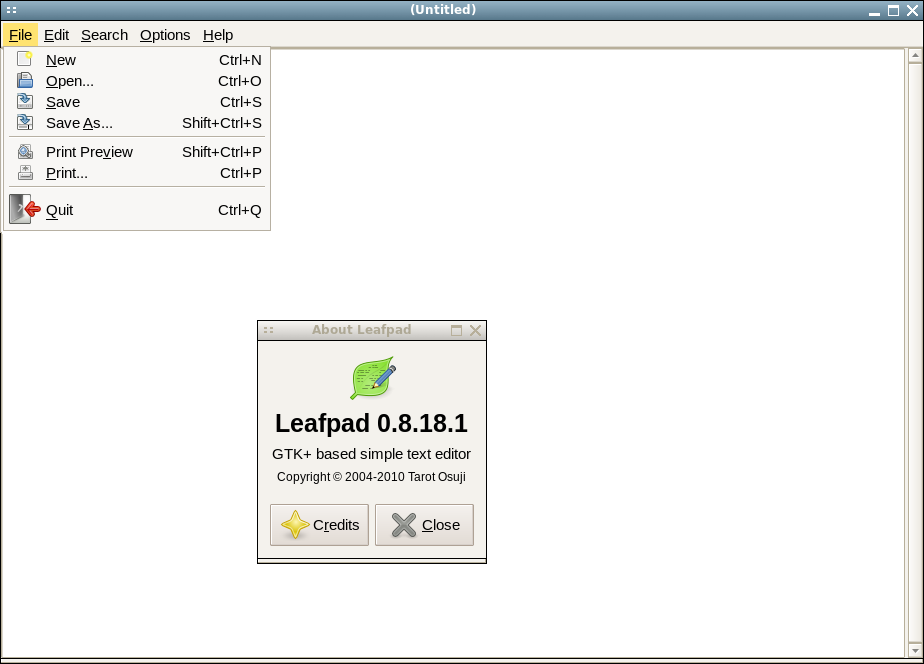
Leafpad is a good default editor for Slackware 14.0, including for raspberry pi

The basic graphical text editor, mousepad, has recently been removed from Slackware in favor of gvim. Personally, that is not my favorite editor. I found that mousepad was actually a derivative of leafpad-- so why not use that instead? A slackbuild is available for Slackware 14.0 here. Also, of note, the same slackbuild works without modification to compile the same source for ARM architecture. The resulting package is compiled and installed using the standard drill. For example, after compiling the package directly on the raspberry pi device, install the package:

# installpkg /tmp/leafpad-0.8.18.1-arm-1_SBo.tgz

The package works natively, but the raspberry pi architecture is a bit challenged by running a full blown X. A leaner alternative is to revert to X-applications forwarded over ssh. To do that configure your ssh server to allow X-apps to be forwarded. In the file, /etc/ssh/sshd_config modify one line:

X11Forwarding yes

Then restart the daemon:

# /etc/rc.d/rc.sshd restart

You can now login from a remote host, and start leafpad:

$ ssh -Y doug@192.168.1.100

doug@rp-1:~$ leafpad &

This will allow you to edit remote files on the remote computer, the raspberry pi in this instance.

Here is a somewhat fudged screenshot.